Unreal Engine Trick Free Timed-Content
This guide walks you through the best way to download Unreal Engine Free Timed-Content.
Hans W.
1/2/20262 min read
Epic Games Free Engine Content
Free (Limited-Time) Engine Content on Epic Games
When Epic Games launched the free engine content service in 2015, it offered new free content on the first Tuesday of every month.
Before
Now
Free (Limited-Time) Engine Content on Fab
The Fab platform updates its content offerings every two weeks. Here are the key details:
Bi-weekly Schedule: New free content is available every two weeks, allowing for more frequent access to diverse resources.
Content Types: Each update includes a variety of digital assets that can significantly enhance your projects.
This change aims to provide creators with greater visibility and a plethora of high-quality options regularly.
Download Free Content from Fab
Follow these easy steps to access free content, and ensure you select the Pro license for your projects.
(Skip to last step if you know where free content is)
Free content (game models, characters, tools, etc.)
is available to anyone with an account.
(Find out how to make an account here.)
All free content is available for use on Unreal Engine, but only some of it can be used in other game engines.
This initiative began in 2015 when Unreal Engine transitioned to a free model with a revenue-sharing structure for commercial use.


Access Fab in Epic Games Launcher
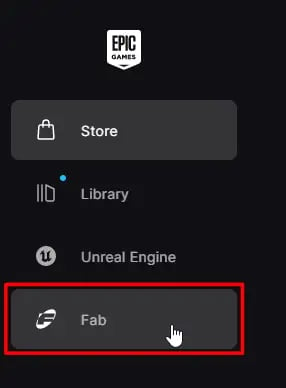
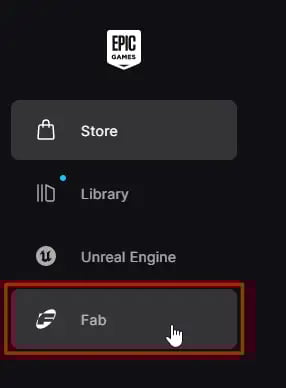
In the left sidebar, locate and click
on the Fab option to access the platform.
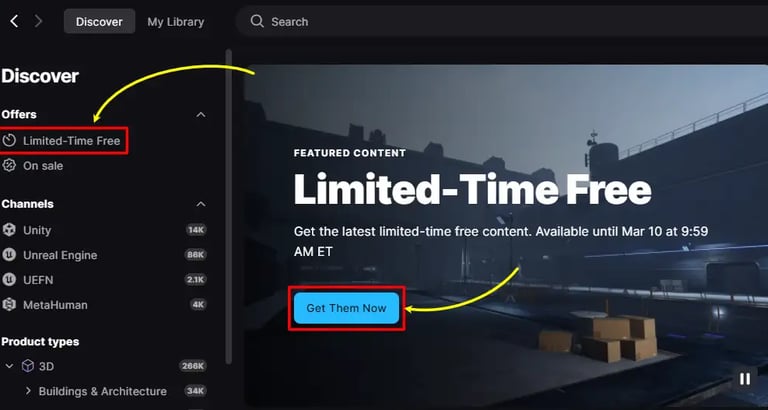
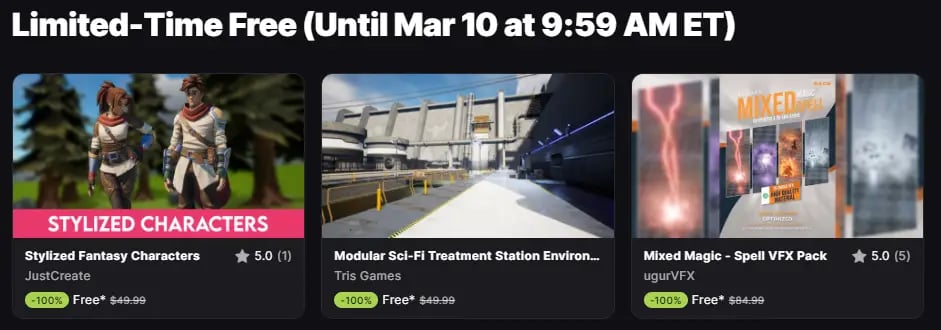
Go to Limited-Time Free Content
It'll appear in the slide show on the right,
and on the left pane under Offers.
Select the Free Content
All of the limited-time free content will be displayed here. There are usually 3 or more, and you can download them all!
Confirm Compatibility
Hover the cursor over the asset's tile and you'll get a preview of its meta data - supported platforms (Unreal Engine, Unity, etc.), file format (.fbx, .blend, etc.), and language (Blueprint, C++, etc.)

Here's a vid of the process.
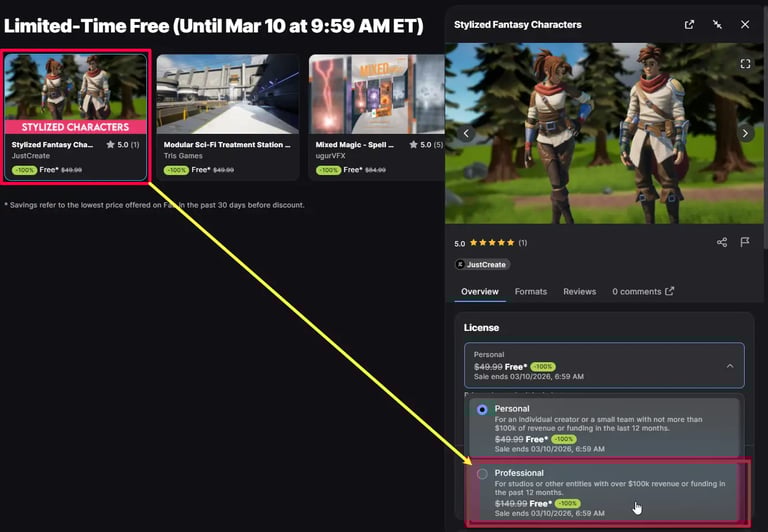
Choose the License
By default, all content is set to the Personal license.
You need to manually select the Pro license instead. This is crucial in case your personal project later evolves into a commercial venture.